
The biggest update to PatternScan Pro yet: Reference Tiles and Mobile App
With this update we're switching to Reference Tiles as the new recognition method, and that affects everyone who uses PatternScan Pro. On top of that comes PatternScan Pro Mobile, starting with iPhone, along with a shared pattern library and... automatic saving in the editor.

Rasmus Liebscher
Co-Founder & Developer
Since we started building PatternScan Pro, the question has always been the same: how do we reduce the distance between "pattern on the table" and "editable SVG, ready to use"? The answer we always hoped for was simple: just take a photo. The way that works is getting its biggest update since PatternScan Pro launched. We can't wait to hear what you think!
With this update we're switching to Reference Tiles as the new recognition method, and that affects everyone who uses PatternScan Pro. On top of that comes PatternScan Pro Mobile, starting with iPhone, along with a shared pattern library and... automatic saving in the editor.
Reference Tiles
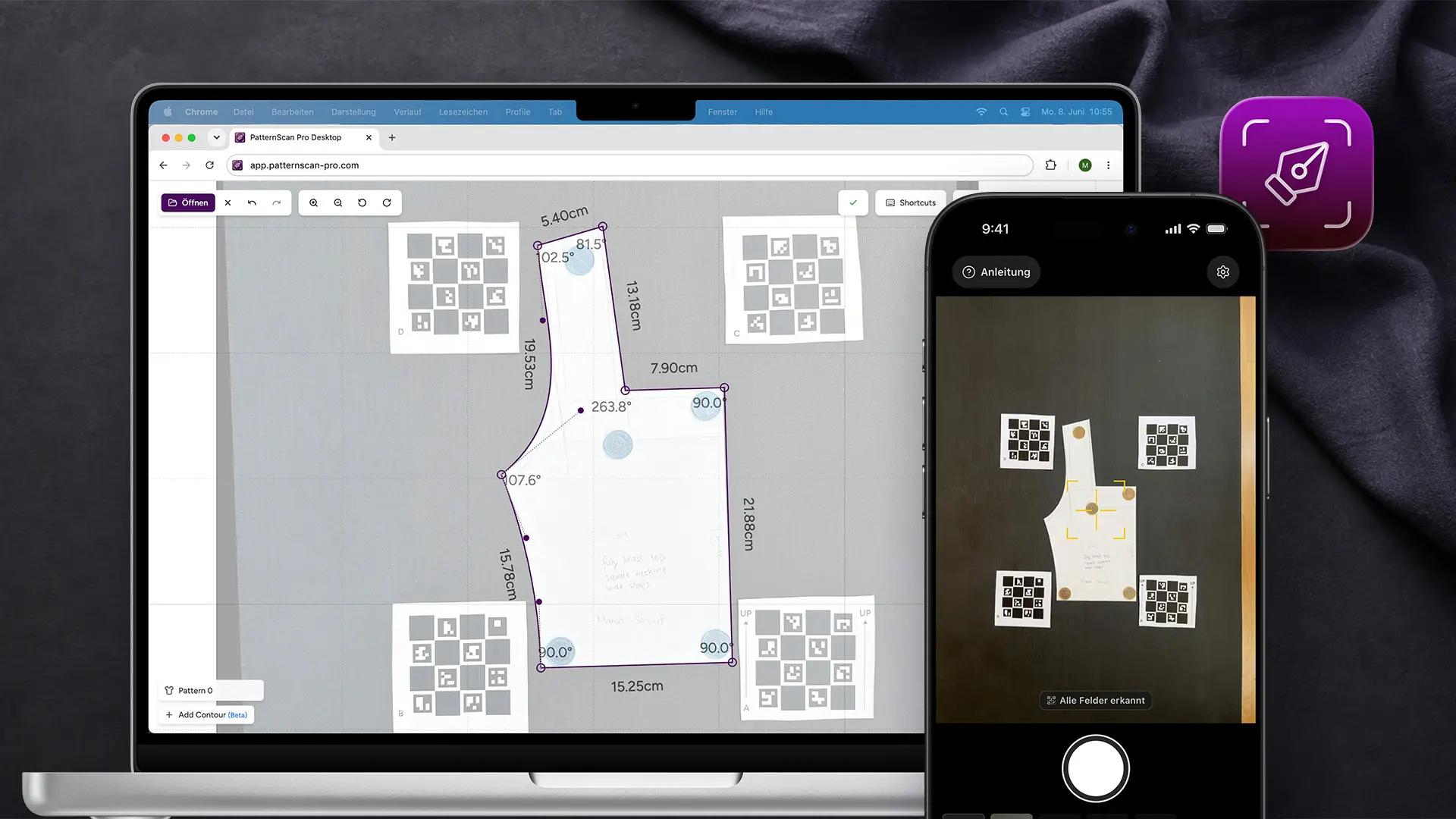
Reference Tiles are small square markers (they look similar to QR codes) that are placed around the pattern instead of next to it. They give the app everything it needs to calculate scale and perspective: how large is the pattern in real life, and what angle was it photographed from?
This is now the only method PatternScan Pro uses to detect and correct patterns. The chessboard pattern can no longer be used for scanning.
The reason is that Reference Tiles placed around the pattern are significantly more precise than a chessboard placed next to it. We want to make sure results are always accurate, not just approximately right. In our tests, the results were precise enough for real pattern work. Measure a known length after importing and you can check it yourself.
PatternScan Pro Mobile
The mobile app was always part of the plan, but we wanted to ship it only once the foundation was solid.
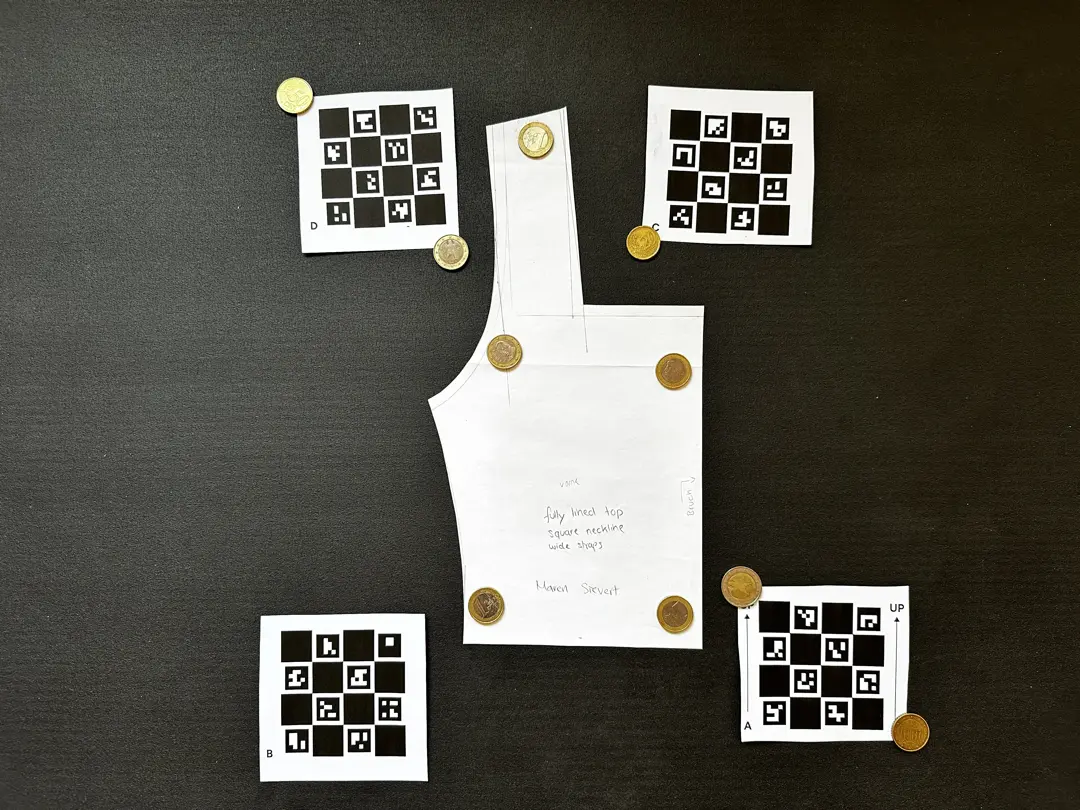
The workflow is exactly the same as before, except photos are no longer taken with the standard camera app but with PatternScan Pro Mobile: pattern on a dark surface, Reference Tiles around it, photo from above.
Through the camera viewfinder you can see in real time whether the fields are being detected. One photo, a few seconds of processing, and the digitized pattern is in your library, ready to edit.
The iPhone corrects its own lens distortion through the camera hardware and iOS, before PatternScan Pro ever sees the image. With our app you usually don't need a calibration profile anymore. Only iPhones with a single camera and Android devices without reliable camera data create one, once.
Update, September 2026: The Android version has been in public beta since July. Both apps are available on request by email, more in our guide to the companion app.
Shoot on your phone, finish in the browser
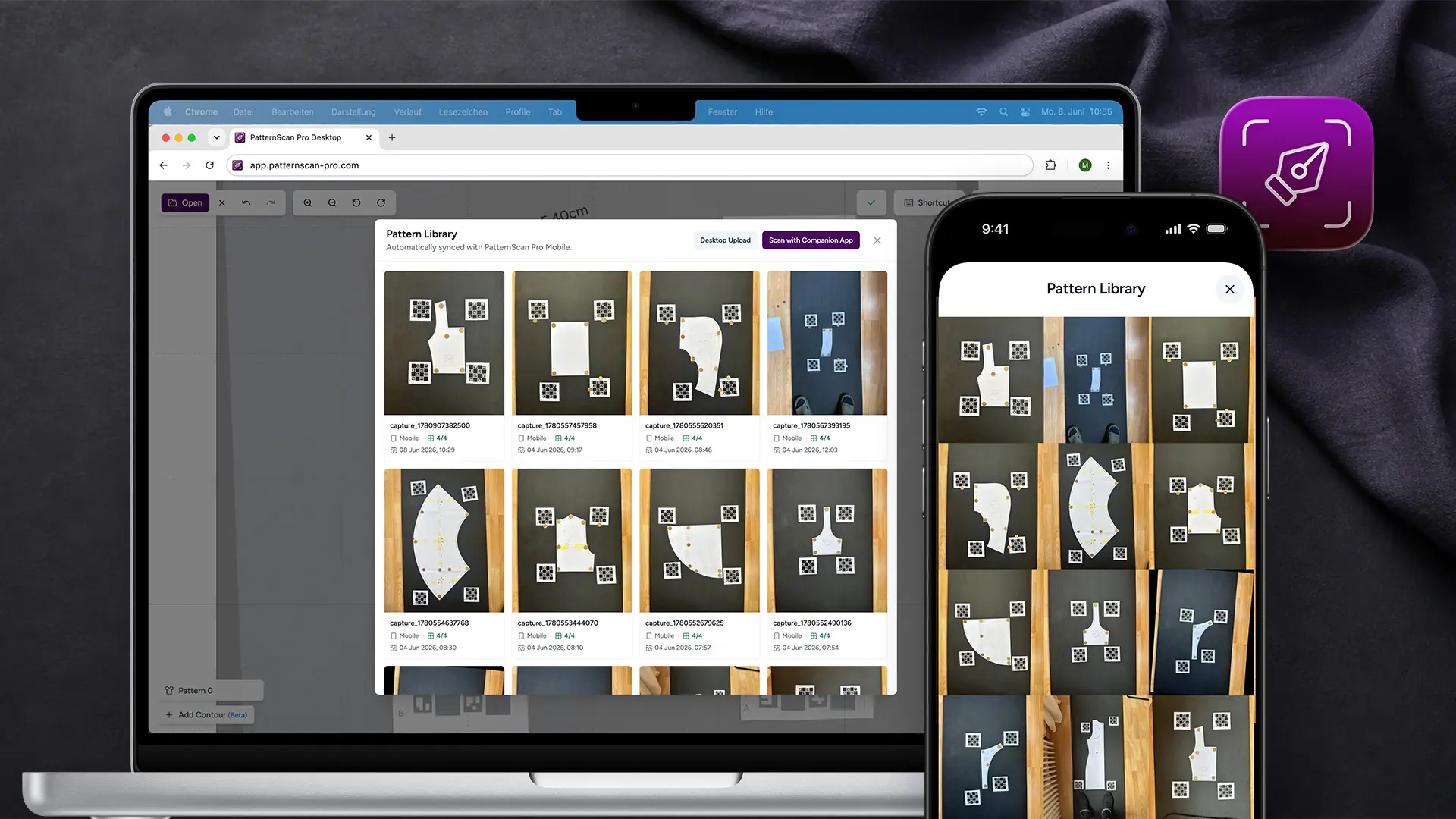
My personal favorite part: the pattern doesn't just land on your phone, it appears immediately in the shared library alongside the desktop app. Open app.patternscan-pro.com on your computer, and the pattern you just shot is already there. No manual transfer, no digging through your camera roll.
You do the detail work in the desktop editor, because it simply gives you more room: adjusting control points, checking measurements, exporting. The phone handles what it does best: a sharp, well-aligned photo.
Auto Save
Changes you make in the SVG editor are now saved automatically. Close a browser tab by accident, laptop goes to sleep: nothing is lost.
What if you don't want to use the companion app?
The desktop upload workflow still works. Photograph with your camera or phone, upload the image, and select your calibration profile for lens correction, exactly as before. Reference Tiles need to be in the image, replacing the chessboard as the reference.
Rasmus is Co-Founder of PatternScan Pro and develops the app with a focus on precision and intuitive usability.

Digitize sewing patterns without tracing.
Test PatternScan Pro free for 14 days with the full feature set. You need your smartphone, a printer and one pattern you always wanted digital.

Photograph your paper pattern and get an automatically scaled digital version with PatternScan Pro.
Usage