

PatternScan Pro Mobile is the companion app for capturing: you photograph your pattern pieces with live feedback, the upload runs in the background, and every scan appears in your library on the desktop within seconds. This guide walks you through the capture, the hints the app gives you, and where the desktop takes over.
PatternScan Pro Mobile is a companion app for active PatternScan Pro accounts, you sign in with the same login as on the web. It runs on iPhone (iOS 15.1 or newer) and Android (7.0 or newer) and is currently in public beta: send us a short email and we unlock access for you.
On the iPhone you need no calibration profile, the app uses the built-in device calibration. Only iPhones with a single camera, and Android devices without trusted camera data, create a calibration profile once.


The setup is the same as for every capture: a dark, smooth surface, the piece laid out flat with weighted corners, and the four Reference Tiles about 1 cm around the piece, following its outline. One piece per photo. The details are in the photography guide.
The camera screen helps you before you shoot: a pill at the bottom shows “All tiles detected” or how many of the four tiles are visible, a “More light” pill appears when it is too dark, the focus bracket in the center turns gold when sharp and red when soft, and the level crosshair snaps together and turns gold when you hold the phone level. The feedback is guidance, the shutter always stays available.
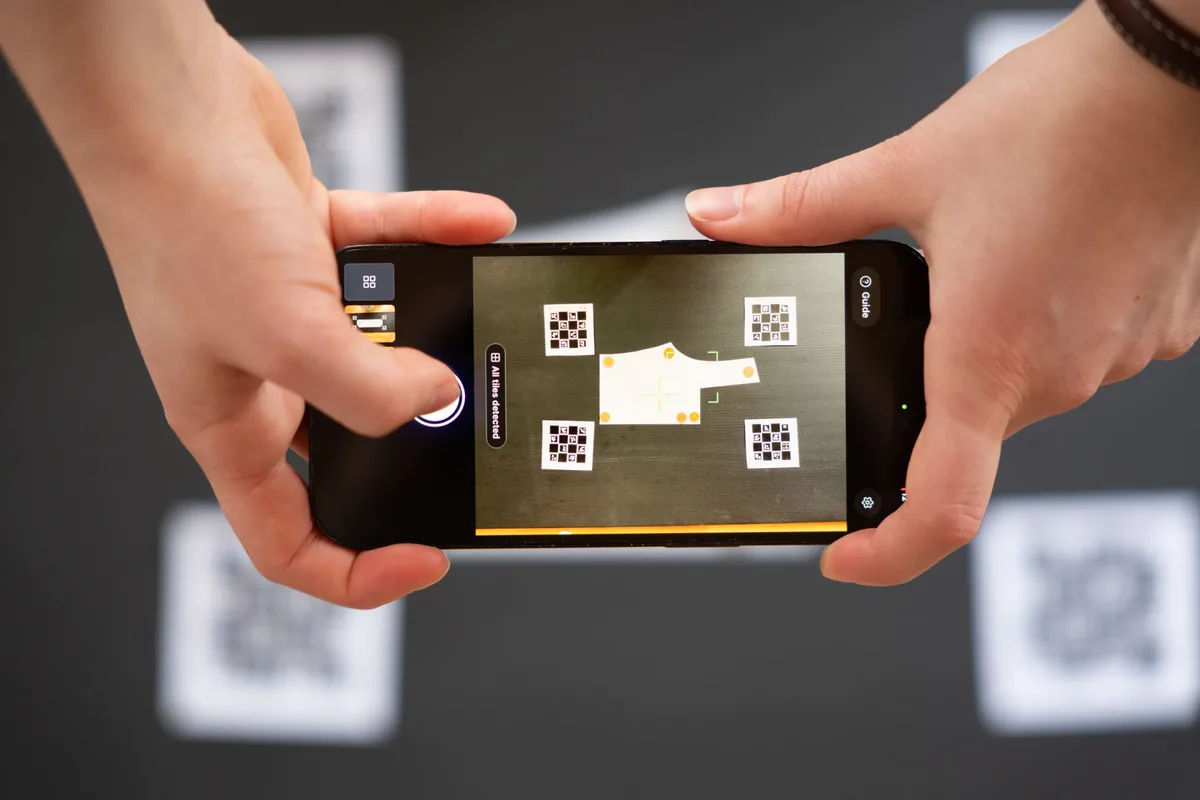
Hold the phone level above the piece and tap the shutter. The app shows “Capturing”, hold still for a moment. There is no confirmation dialog afterwards: the capture drops into the thumbnail strip, processing and upload run in the background, and you lay out the next piece. A whole pattern is simply one photo per piece, taken one after the other.
If a capture needs a second look, a tappable amber hint appears, for example that only some tiles were detected, the angle was too steep, or several outlines were found. The detail view shows the verdict as “Good capture” or “Please check” with four badges for sharpness, angle, tiles and brightness, and lets you compare photo, pattern and preview. When in doubt, retake the photo, it costs seconds.
Tap the name in the detail view to rename a scan, up to 80 characters, for example the piece and the size. Your library is the same on mobile and desktop: every scan, rename and delete shows up on the other device within seconds. Offline the capture still works, the upload waits in a queue and continues the next time the app is open.
You can export straight from the phone, SVG, PNG, DXF and PACX are the same exports as on the desktop. The fine work happens in the desktop editor at app.patternscan-pro.com: editing contours and seam allowance, grain line and notches. On mobile you can rename, delete and remove stray contours, and the app does not display seam allowance and grain line yet.
Digitize sewing patterns without tracing.
Test PatternScan Pro free for 14 days with the full feature set. You need your smartphone, a printer and one pattern you always wanted digital.
Photograph your paper pattern and get an automatically scaled digital version with PatternScan Pro.
Usage