

Every detected contour in PatternScan Pro is a path with control points that you can edit freely. This guide shows you how to move, add and remove points, how to shape curves with the Bezier handles and their shortcuts, and how to type exact measurements straight onto the pattern.
When you open a pattern in the editor you are already in Edit mode: the contour shows its control points, and everything in this guide happens right here. If you were in another tool, V brings you back. And every change is its own undo step, nothing is final.


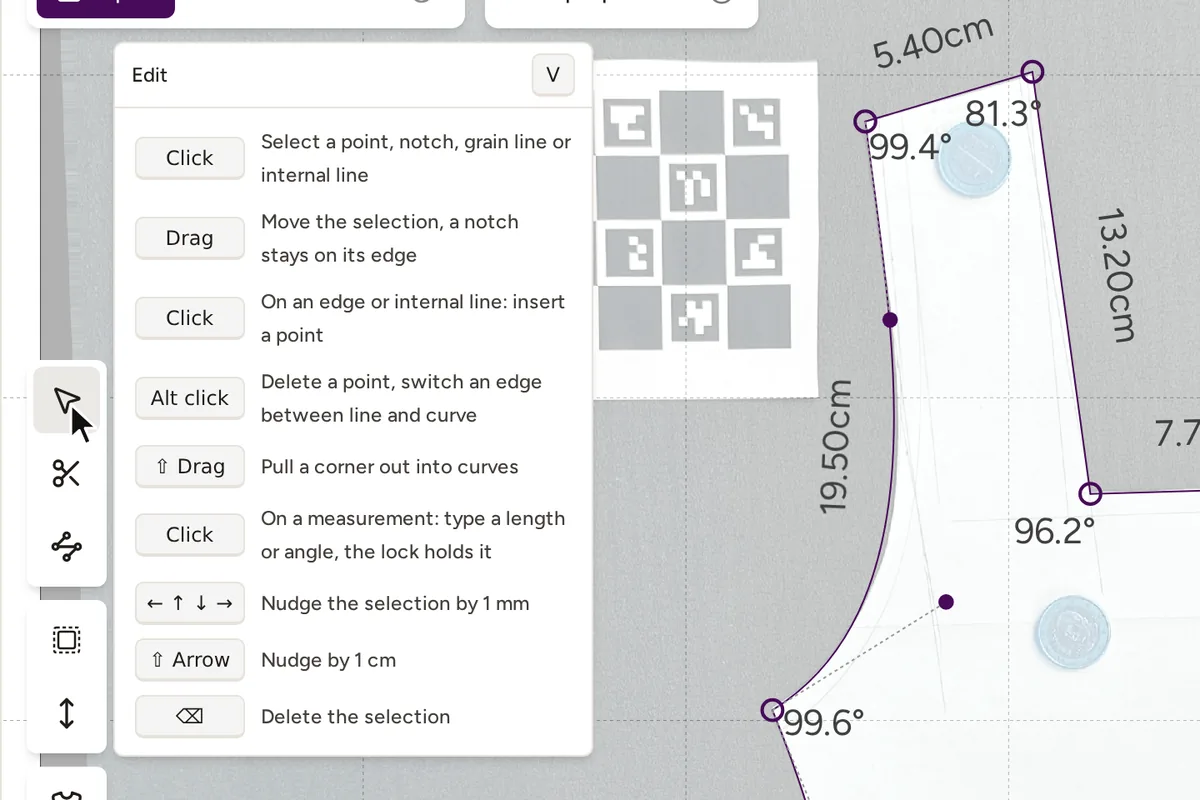
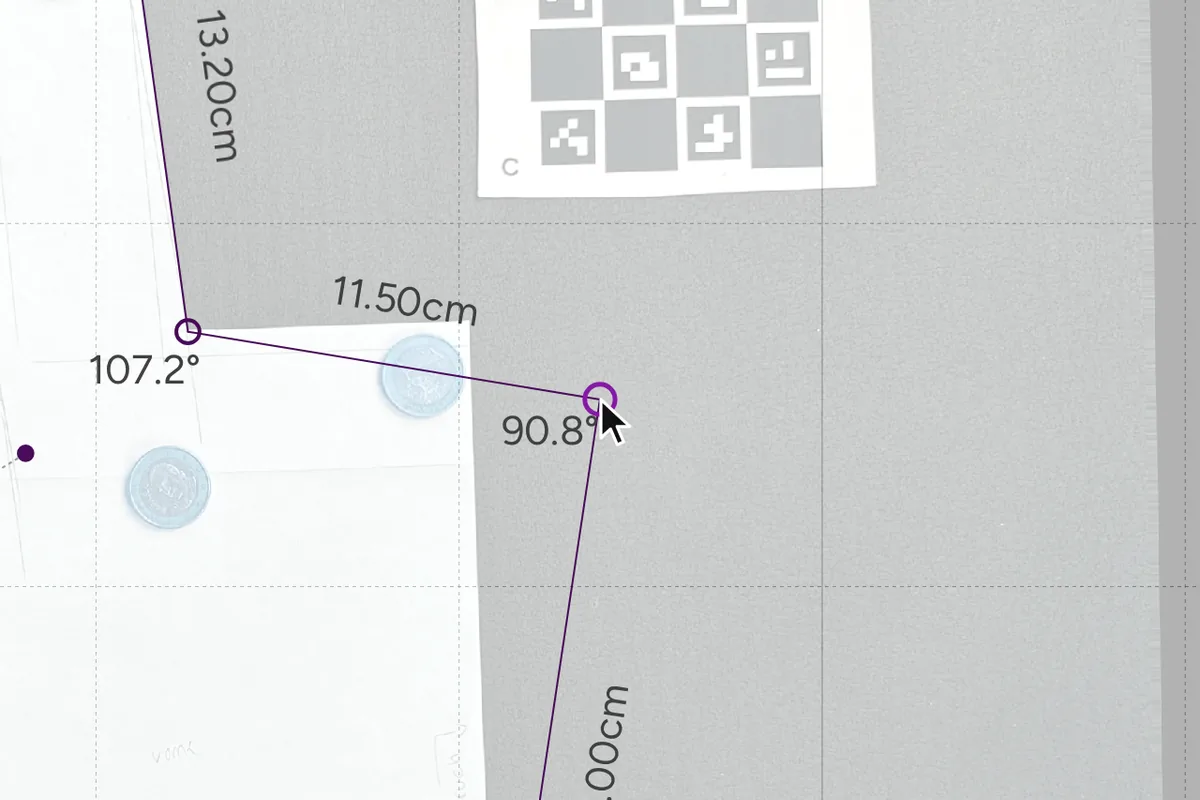
Drag a contour point to move it. The neighboring segments stay connected and follow along, so the contour never tears open.
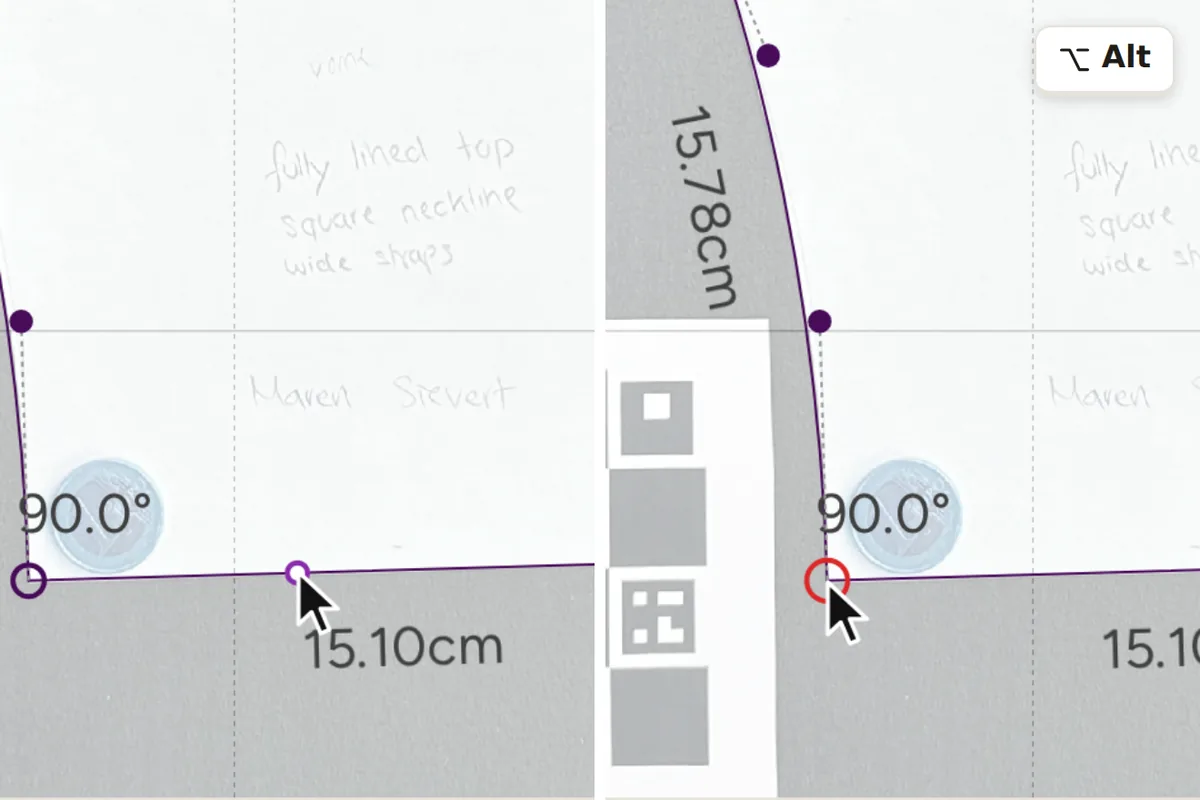
Add: click a segment to insert a point there and split the segment. Remove: Alt-click a point to remove it, the neighboring segments join up again. Your per-edge seam allowance widths survive both.
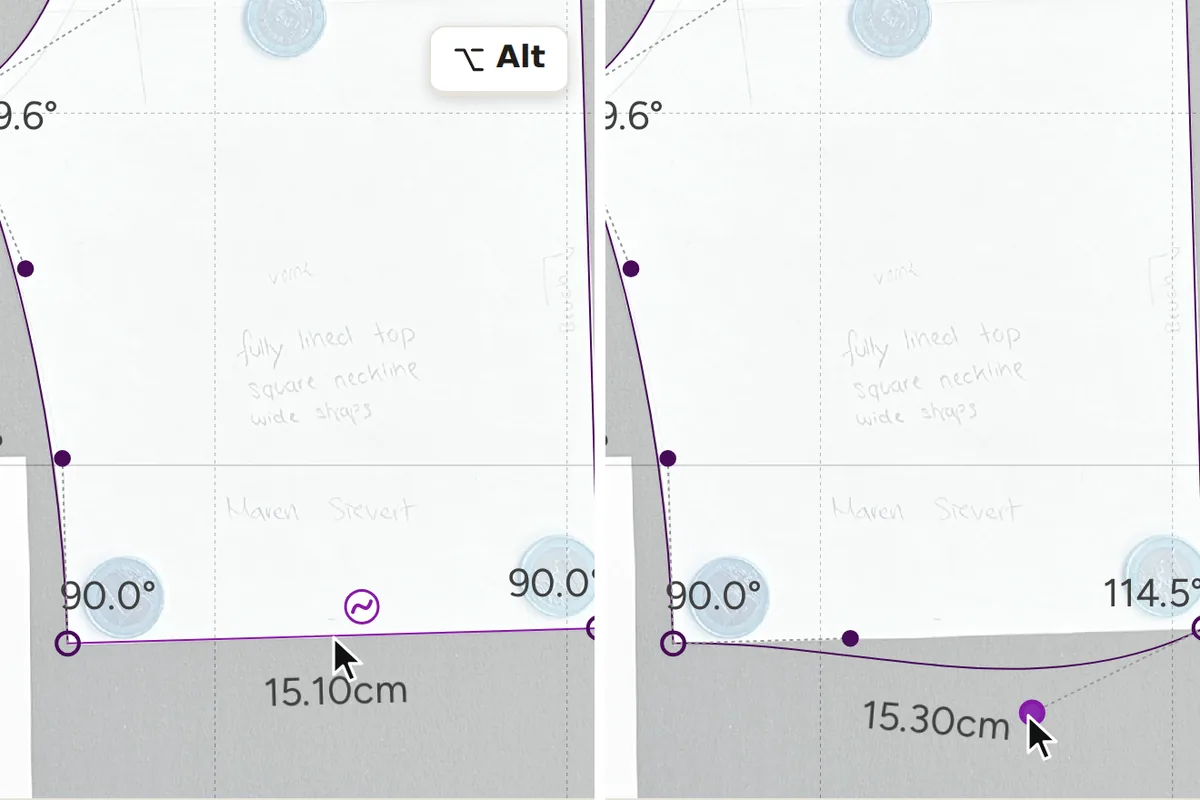
Alt-click a segment to show its Bezier handles and turn the line into a curve. Alt-click again to hide them. A segment without visible handles behaves as a straight line.
With a segment's handles visible, drag a handle freely to shape the curve. The anchor points stay fixed, only the bend changes. This is the base mode, all modifier keys build on it.
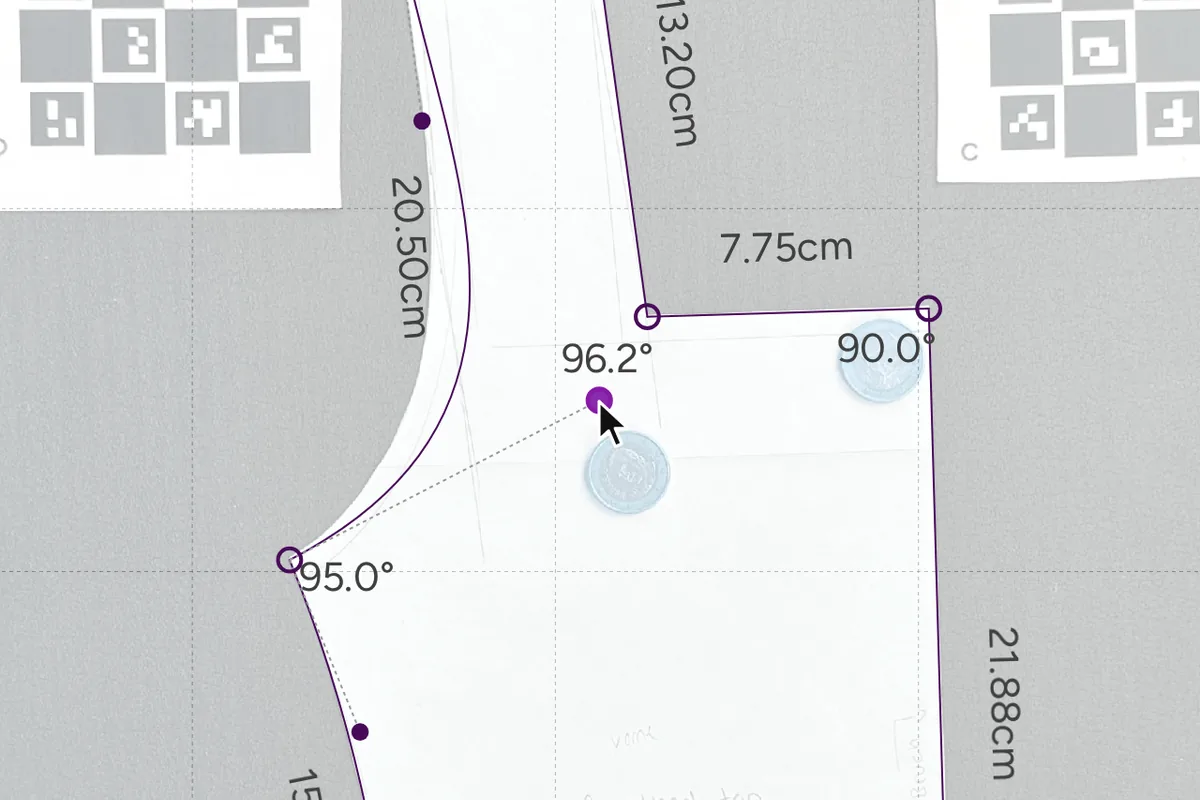
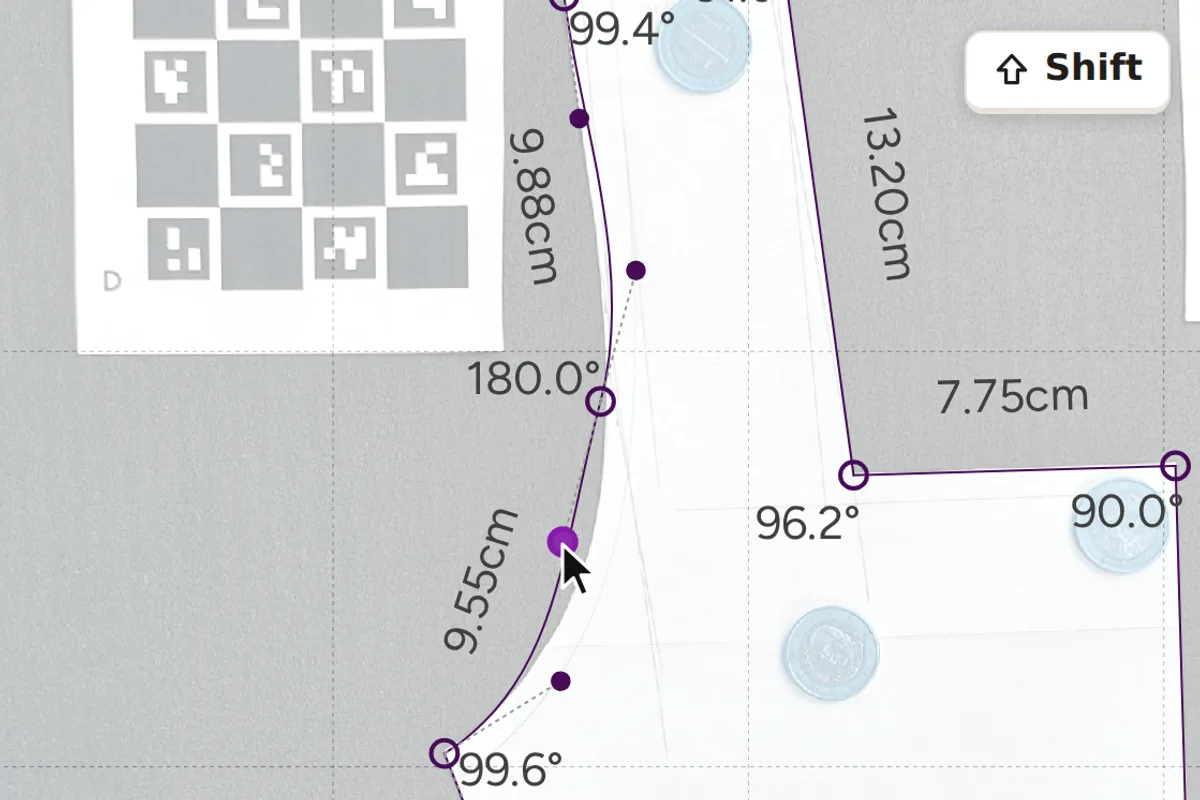
Hold Shift while dragging and the neighboring segment's handle turns 180° opposite yours while keeping its own length. The transition between the two segments stays smooth, with no kink at the anchor point.
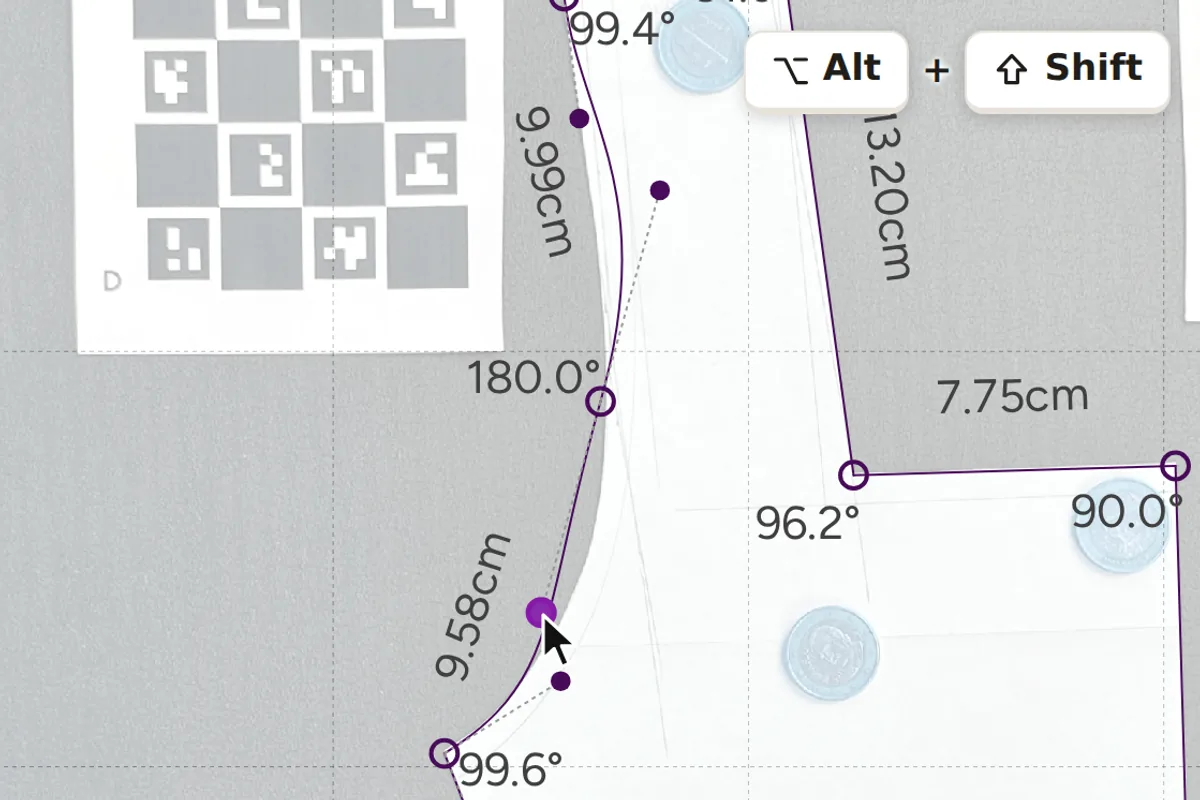
Alt + Shift additionally mirrors your length on the neighbor, for a fully symmetrical pair of handles. And with Cmd or Ctrl the opposite handle of the same segment mirrors your angle across the segment line, combinable with Shift and Alt. You do not have to memorize this: just try the keys while dragging, every change can be undone.
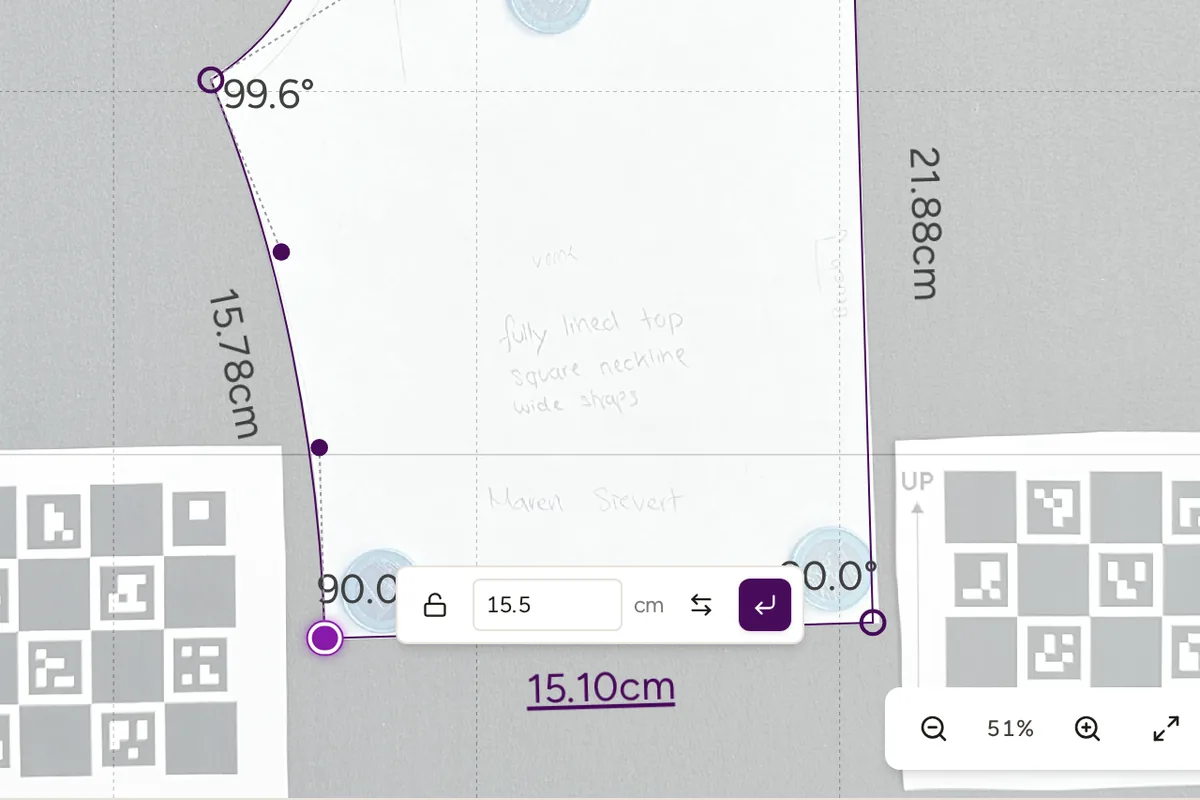
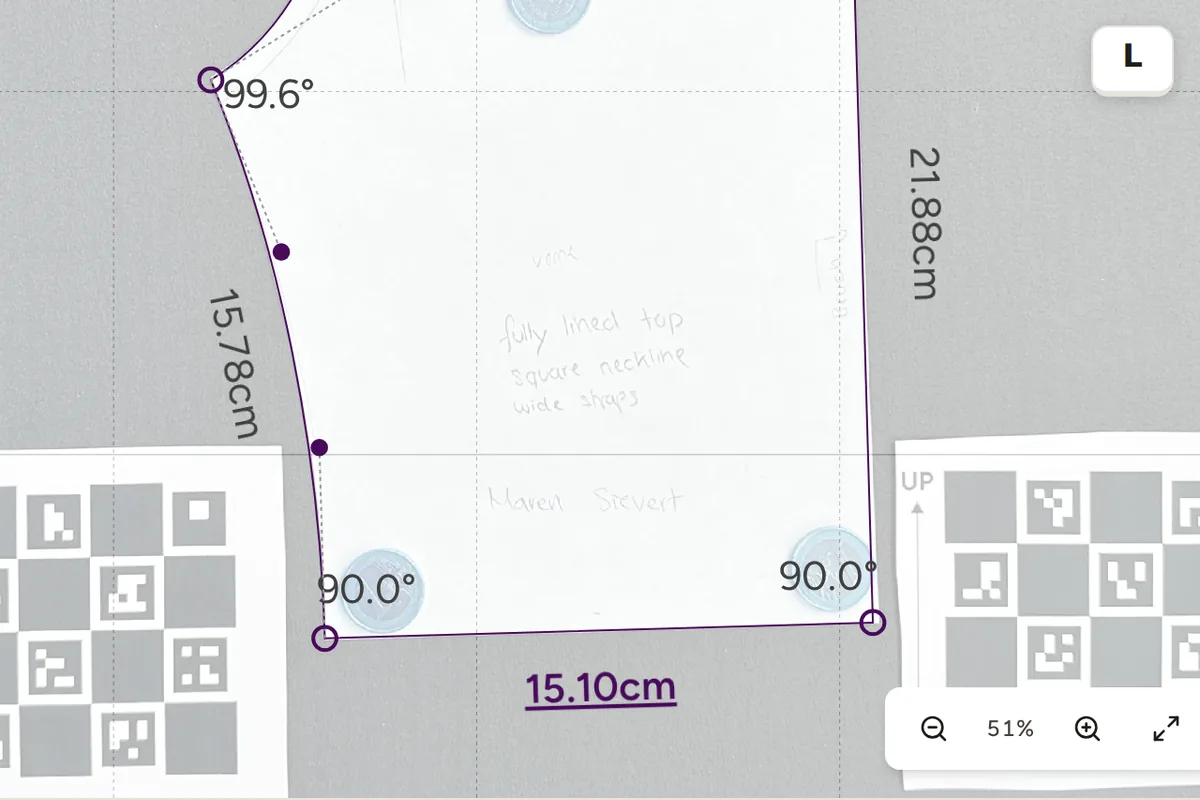
Click a number on the outline and an input field opens: type the value, press Enter, and the edge or corner takes exactly that measurement. For edge lengths and corner angles you can also swap which end stays put, so the change grows in the direction you want.
Press L on a measurement to lock it. Its label turns violet, and any change that would break it flashes red instead of applying. That way a fitted length stays fitted while you keep working on the rest of the contour.
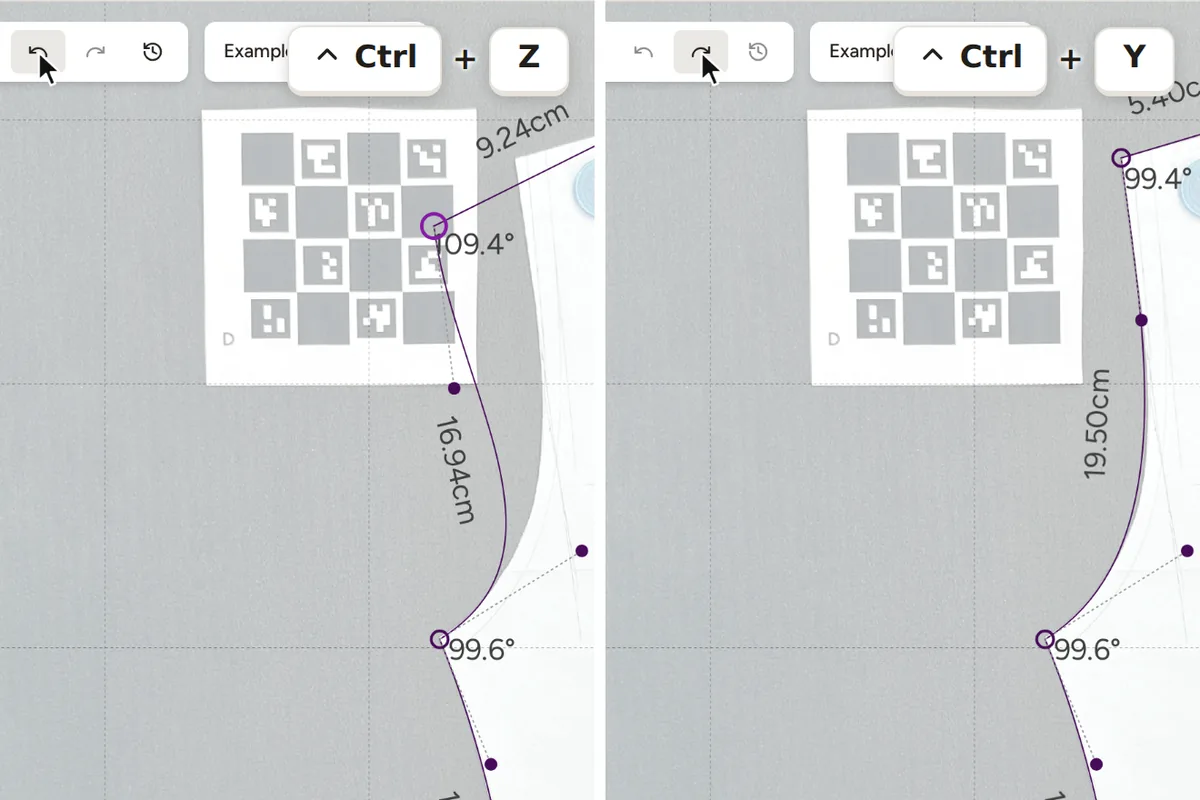
Undo and redo cover every editing step. Even a deleted piece is not gone immediately: the contour list shows a countdown with an Undo button before the deletion becomes final. And if a contour is beyond saving, you can always draw it by hand.
Digitize sewing patterns without tracing.
Test PatternScan Pro free for 14 days with the full feature set. You need your smartphone, a printer and one pattern you always wanted digital.
Photograph your paper pattern and get an automatically scaled digital version with PatternScan Pro.
Usage